Tutorial 8 of 8
Turn a public page into a table and watch it change
Intermediate 9 min
Build a page extractor recipe with CSS selectors and a live preview, run it on a public page or pasted HTML, see new, removed and changed rows on the next run and repair a recipe after the site changed.
Some public sources are lists that change: a council's notices register, an authority's document list, a price list you check every week. The Extract tab turns such a page into a table with a small recipe of CSS selectors, keeps the recipe in the case and shows what changed when you run it again. Nothing runs on its own: a page is read only when you press Run.
1. Start from the example
Open the Extract tab (key 7) and press Add the example. The example uses Pasted HTML: the page source is stored in the case, so nothing is fetched. To read a live page instead, set Source to Public address and enter its address.
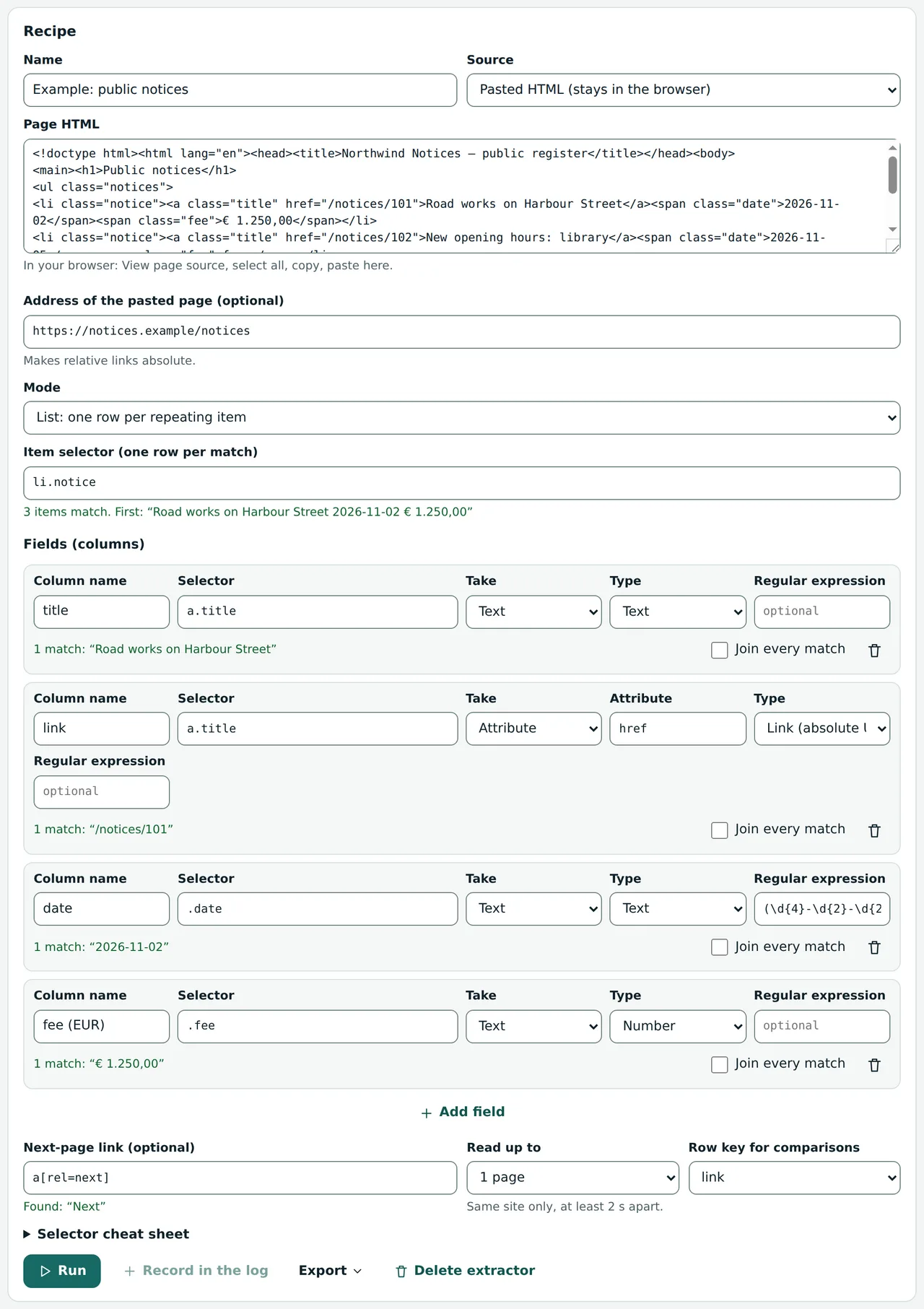
A recipe in List mode has an Item selector — one row per matching element, here li.notice — and fields, one column each. Field selectors look inside the item:
- Take decides what is kept: the Text, only the element's Own text, or an Attribute such as
href. - Type turns
€ 1.250,00into the number 1250 (Number) or makes a link absolute (Link). - A Regular expression keeps its first group, for example
(\d{4}-\d{2}-\d{2})for a date. - Join every match collects all matches instead of the first one.
Under every selector a live preview says how many elements match and shows the first value, so you can fix a selector before you run anything. The preview needs the page: pasted HTML, or the page from your last run. Selector cheat sheet lists the supported syntax; a::attr(href) and ::text at the end of a selector work too, and so do :is(), :where(), :not() and :has() — for example article:has(.price) for articles that contain a price.
Pick elements instead of typing selectors
Press Pick on the page… to see the page as a plain preview: its text structure only, without the page's scripts, styles, images or working links, so nothing of the page can run. Click the value you want — a title, a date, a price — or walk through the page with Parent, First child, Previous and Next if you prefer the keyboard. ObscurIQ then shows:
- a selector for this element only and one for all similar elements, which are outlined in the preview,
- the repeating item around it — your item selector, or a suggestion you can apply with Use as item selector,
- a field inside each item, with how many items have it and whether the text, a number or the link address is taken. Add as field adds it as a new column.
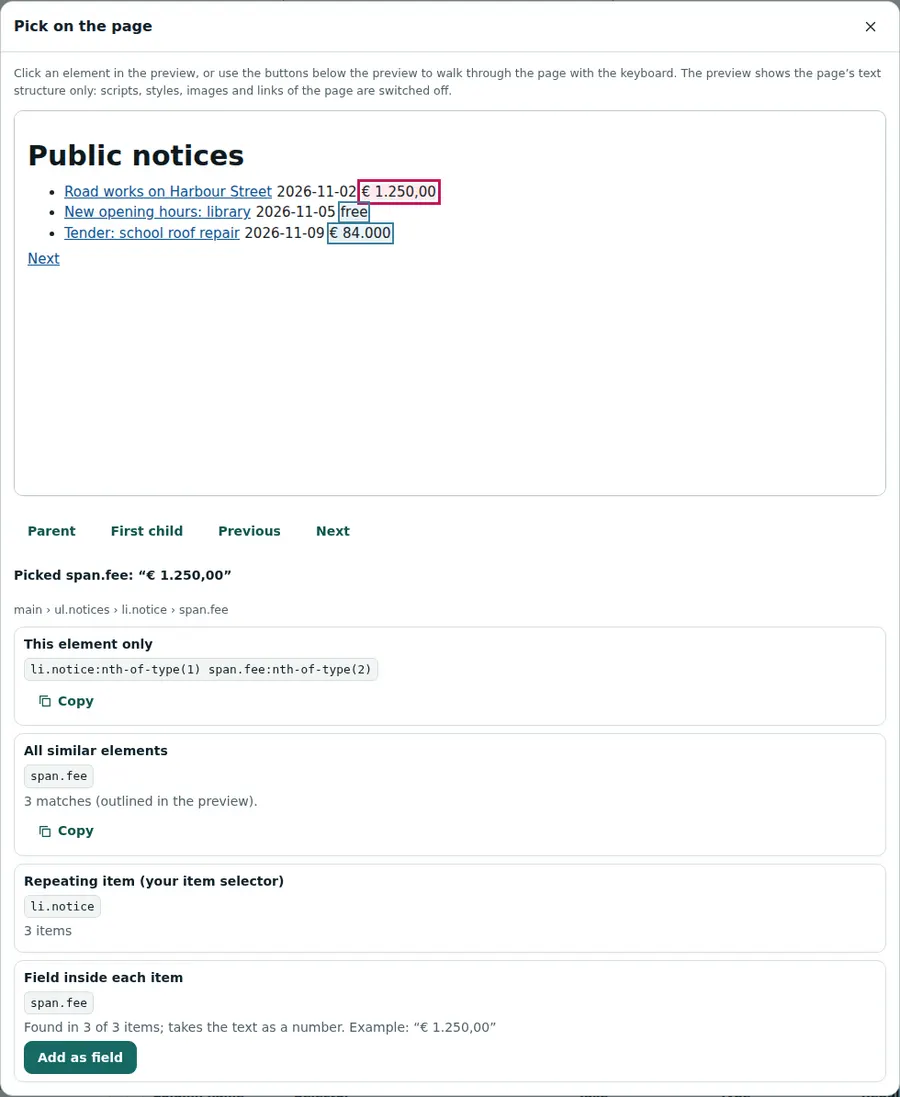
Every change from the picker is one step you can undo with Ctrl + Z.
2. Run and keep the result
Press Run (or Ctrl + Enter). The table appears under Result, and the run is saved in the case. Record in the log adds a source entry with the address, the columns and the change summary. Export downloads the table as CSV or the run as JSON with the recipe, and Open table in another app… hands the CSV to an app that accepts tables, for example RavingDesk or Proofline.
Extracted values are untrusted text copied from someone else's page. Check them before you rely on them.
3. How public pages are read
With a public address, usefulweb.site reads the page for you — and only then:
- It reads the site's robots.txt first. If the site does not allow automated access to that path, nothing is fetched and the message names the rule. An unreachable robots.txt counts as “no”.
- Requests identify themselves as UsefulWebFetcher, send no cookies or logins and run no JavaScript. Pages behind a login, paywall or bot check are not read.
- A Next-page link is followed only on the same site, up to the number of pages you choose (at most five), with at least two seconds between requests.
- A page read in the last ten minutes comes from the cache.
- Detail pages (optional): in list mode, tick Open each row’s link and read more columns there, choose the column with the link and how many pages to read (at most 20), and add fields with selectors for the detail page — for example the deadline or reference number that only a notice’s own page shows. Only links on the same site as the list are opened, robots.txt is checked for every page and the same two-second pause and 60-second limit apply. Pages that are not read are listed with the reason, and their rows keep empty detail columns. With pasted HTML no links are opened.
If a page builds its content with JavaScript, the table stays empty. Open the page in your browser, copy its source and use Pasted HTML instead.
4. See what changed
Run the recipe again later. ObscurIQ compares the new table with the previous run that had rows and shows New, Gone, Changed and Unchanged. With a Row key for comparisons (here the link), a row whose title or fee changed shows up as changed, with the old and new value.
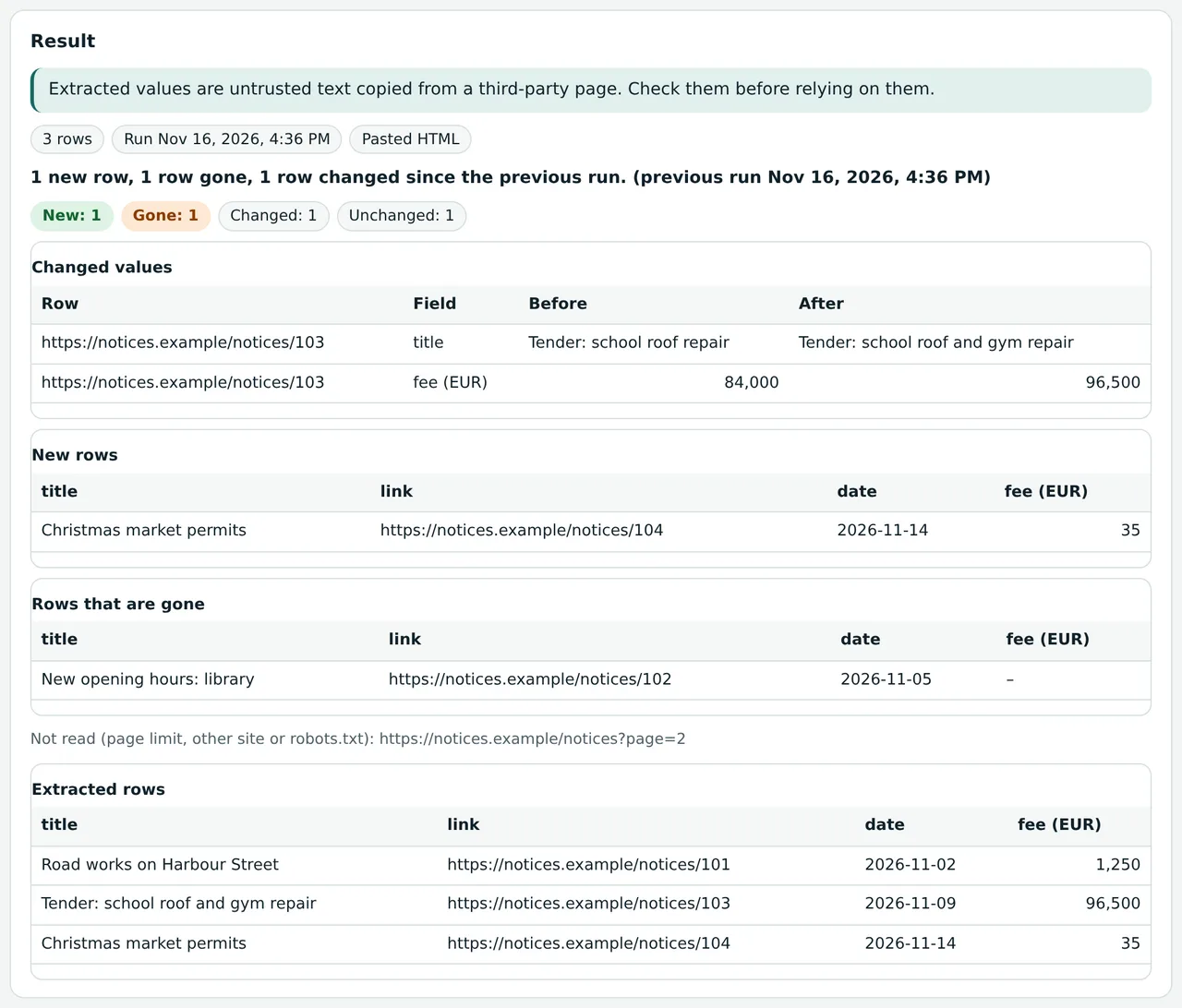
To compare with an older table, use Export → Compare the next run with a saved file… and pick an earlier JSON or CSV export.
5. Repair a recipe after a site change
Websites rename their classes. When the item selector suddenly matches nothing, ObscurIQ looks for elements that resemble the items of the previous run — same tag, similar classes, attributes, words and position — and proposes selectors:

Press Use this selector, then Run again. The same works for a single field that is empty in every row. Every change to a recipe can be undone with Ctrl + Z.
6. For agents and scripts
The same engine runs as the tool Structured Page Extractor (obscuriq-page-extractor) in the JSON API and over MCP. Export → Recipe as JSON… shows the recipe in the format the tool expects. Tool results are marked as untrusted page text, so an AI agent should treat them as data, not as instructions.
Ready to try it?